
Yahoo, AOL, and Other IMAP Email Providers
Last updated
Gmail, iCloud, Outlook, and Fastmail each have their own option. For everything else, the Other email provider option connects almost any mailbox that offers IMAP: Yahoo Mail, AOL Mail, Zoho Mail, GMX, mail.com, WEB.DE, Yandex Mail, your internet provider’s email, or a server you run yourself. Premail watches and sorts these accounts with the same rules as every other account. A few features depend on things only some providers offer, and those are listed below.
How do you add an Other email provider account?
- 1In the Accounts tab, click “Add Account” and choose Other email provider, the last option in the row with Gmail, iCloud, Outlook, and Fastmail. The same row is in the setup wizard.
- 2Enter your full email address. Premail looks up the server settings for it. This takes a few seconds at most, and no password is asked for or sent yet.
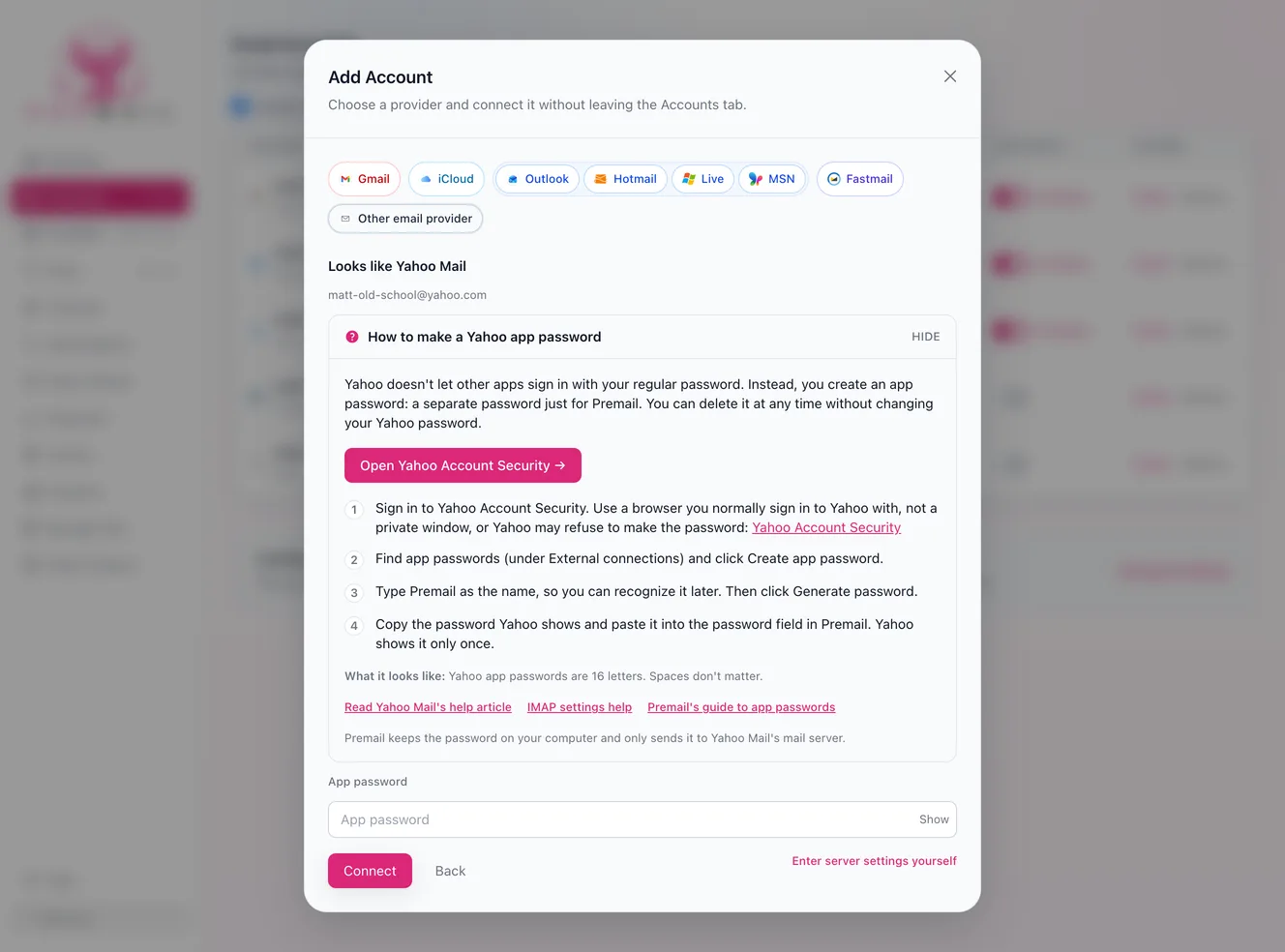
- 3If Premail recognizes the provider, it says so, for example “Looks like Yahoo Mail”, and shows that provider’s password steps right there. Follow them and paste the password into the single password field.
- 4Check the confirm screen. It shows the server name your password will be sent to. Make sure it belongs to your provider, then click Connect.
- 5The summary shows which folders Premail will use for Archive, Trash, and Junk, each with a Change button, and which features are available for the account.
If you enter a Gmail, iCloud, Outlook, or Fastmail address, including your own domain when its mail is hosted by Google, Apple, Microsoft, or Fastmail, Premail sends you to that provider’s own option instead, because it supports more features. If Premail can’t find settings, it opens the manual form described below.
New accounts start in Learning mode, like every other account, so nothing moves until you switch the account to Live.
What does autodiscovery do?
Premail tries these sources in order and stops at the first one that works:
- 1Its built-in list of providers, matched on the part of your address after the @. This step uses no network at all.
- 2Your domain’s mail (MX) records, looked up with your computer’s own DNS settings. This is how a custom domain hosted by Zoho, for example, is recognized.
- 3A settings file your provider may publish on its own domain, in the format Thunderbird uses.
- 4Mozilla’s ISPDB, the public database of mail server settings that Thunderbird uses.
- 5DNS service records that some providers publish for mail apps.
- 6Common server names such as
imap.example.comandmail.example.com.
Only your email domain (for example, example.com) leaves your computer during discovery, never the full address and never your password. Premail checks that a discovered server answers securely, but it doesn’t sign in. Your password is only sent after you’ve seen the server name on the confirm screen. The whole lookup gives up after about eight seconds and opens the manual form. The privacy policy explains who receives the domain.
Discovery only contacts servers on the public internet. For a server on your own network, enter its settings in the manual form.
Which providers have built-in settings, and what password do they need?
For these providers Premail already knows the incoming and sending servers and the usual folder names, and shows a step-by-step password guide with a link to the provider’s own page. Many providers don’t accept your regular password from other apps. Instead you create an app password: a separate password just for Premail that you can delete at any time without changing your main password.
- Yahoo Mail (yahoo.com, ymail.com, rocketmail.com, and regional Yahoo addresses): needs an app password. In Yahoo Account Security, find app passwords under External connections, click Create app password, and name it Premail. It is 16 letters, shown once.
- AOL Mail: needs an app password, made the same way in AOL Account Security with Generate app password.
- Zoho Mail (United States, Europe, India, Australia, and Japan data centres): tick IMAP Access in Zoho Mail under Settings, Mail Accounts. Use your regular Zoho password, or an app password if you use two-factor authentication. Zoho’s free plan doesn’t include IMAP for new sign-ups.
- GMX: turn on POP3 and IMAP access under Email, Settings, POP3 & IMAP. Use your regular password, or an application-specific password with two-factor authentication. GMX turns IMAP off again after a long time without use, so if Premail stops connecting months later, turn it back on.
- WEB.DE: the same as GMX, in German. Switch on POP3- und IMAP-Zugriff erlauben under E-Mail-Einstellungen, and use an App-Passwort if you use two-factor authentication.
- mail.com: turn on POP3 and IMAP access under Email, Settings. IMAP is only available on mail.com Premium.
- Yandex Mail: under Settings, Email clients, allow IMAP and app passwords, then create an app password for Mail in Yandex ID Security. A new Yandex app password can take 2 to 3 hours to start working.
Fastmail isn’t in this list because it has its own option. See Connecting Fastmail.
Any other provider works through autodiscovery or the manual form. Check your provider’s help pages for whether it needs an app password or wants IMAP switched on first.
How do you enter server settings by hand?
When nothing is found, or a lookup isn’t certain, Premail shows a form. Your provider’s help pages list the values, often under “IMAP settings” or “mail app settings”.
- Incoming (IMAP) server: a name such as
imap.example.com. - Port and security: SSL/TLS on port 993 is the usual choice; STARTTLS on port 143 is the other. Premail warns about a port outside those two but lets you use it.
- Username: usually your full email address.
- Password: your regular password or an app password, whichever your provider requires.
Premail never signs in over an unencrypted connection and always checks the server’s security certificate.
Below the incoming settings, a collapsed Sending (optional, advanced) section takes the outgoing (SMTP) server: its name, port (465 for SSL/TLS or 587 for STARTTLS), a username if it differs, and a separate sending password if your provider uses one. You can leave it empty. The account still connects and is sorted normally; only auto-reply needs it.
How do sending settings and auto-reply work?
Premail only sends mail for auto-replies, and for an Other email provider account it sends through the account’s SMTP server. Built-in providers and discovered settings fill that in automatically.
If an account has no sending settings, its card says “Auto-reply isn’t available for this account. Add sending settings to turn it on.” The switch stays off, and Send auto-reply in Activity is disabled. Click Add sending settings to open the Sending settings card on the account’s page.
How does folder mapping work?
Gmail and Outlook have fixed folders. IMAP servers name theirs freely, so Premail works out which folder to use for Archive, Trash, Junk, and Sent. It uses the folder your server marks for that job, then a well-known folder name (Yahoo’s junk folder, for example, is called Bulk Mail). If there is no Archive or Trash folder, Premail creates one the first time it needs it. It never guesses a Junk or Sent folder.
The account page lists each folder with a note such as “Marked by your server” or “Chosen by you”. Click Change to pick a different folder from the ones on your server. If no Sent folder is found, Premail can’t confirm replies you’ve sent in a conversation, and the page says so.
How do you change the server settings later?
Open the account in the Accounts tab. The Server settings card lets you edit the incoming server, the sending settings, and the folders. Test connection signs in without saving anything, and Save runs the same test before switching over.
If you change the server name or username, Premail asks for the password again. Your saved password is never sent to a new server, so a typo or a lookalike server name can’t capture it.
What isn't available for Other email provider accounts?
- Contacts sync, for some providers. Zoho Mail, GMX, and WEB.DE accounts can sync contacts when the password you gave Premail is allowed to read them. Yahoo Mail, AOL Mail, mail.com, and Yandex Mail accounts, and accounts with no built-in settings, are mail only: their contacts row says contacts sync isn’t available. Your manual allow and block lists still apply. See Contacts.
- Labels. IMAP mailboxes have folders, not labels, so the label action is hidden, the same as for iCloud Mail.
- Verification links in Security Quick Access. Premail can’t confirm these providers’ sender authentication, so it never offers a clickable verification link. Codes can still be copied. See Security Quick Access.
- Open-in-mail-app links in Briefings. Briefing items from these accounts don’t link to a web mail page.
- Auto-reply without sending settings, as described above.
Like iCloud, these accounts use IMAP, so new mail can reach Premail a little later than with Gmail. See why iCloud Mail is slower than Gmail. Providers that don’t offer IMAP with a password, such as Proton Mail, can’t be connected.
Is it free?
Yes. An Other email provider account on a consumer domain, such as yahoo.com, aol.com, gmx.com, or comcast.net, is a personal inbox and counts toward the free plan’s two personal inboxes, just like a Gmail or iCloud address.
An address on your own or your company’s domain is a professional inbox and needs Premail Pro, whichever provider hosts it. That includes a custom domain on Zoho or Fastmail. See Work & Professional Inboxes.
What do the connection errors mean?
- “Your email provider didn’t accept the username or password.” The most common cause is using your regular password where the provider wants an app password. Make a new app password and paste it exactly. For Zoho, GMX, WEB.DE, mail.com, and Yandex, also check that IMAP is switched on in the provider’s settings.
- “IMAP access is turned off for this account.” Turn on IMAP in your provider’s web mail settings, then try again. Some providers only offer IMAP on paid plans.
- “Couldn’t find the mail server”. The server name doesn’t exist. Check it for typos and check that you’re online.
- “Refused the connection” or “the connection timed out”. Check the port and the security setting, and that a firewall or VPN isn’t blocking mail ports.
- “The security certificate isn’t valid or isn’t trusted”. Use the exact server name your provider documents. A name that only redirects there often has a certificate for a different name.
- “Couldn’t set up a secure connection” or a STARTTLS message. The security setting doesn’t match the port. Try SSL/TLS on port 993.
- “Didn’t respond like an IMAP mail server”. The name or port points at something else, such as a sending (SMTP) server or a web page.
- “Doesn’t allow password sign-in on this connection”. The server only accepts another sign-in method. Check your provider’s help for a mail app setting or an app password.
Still stuck? Send feedback with your provider’s name (not your password).
Still have questions?
Contact Support (for Pro members)