
Bulk Inbox Cleaner
Last updated
The Inbox Cleaner handles the backlog. If you had hundreds (or thousands) of unread messages sitting in your inbox before you installed Premail, Inbox Cleaner lets you bulk-process them using your current rules.
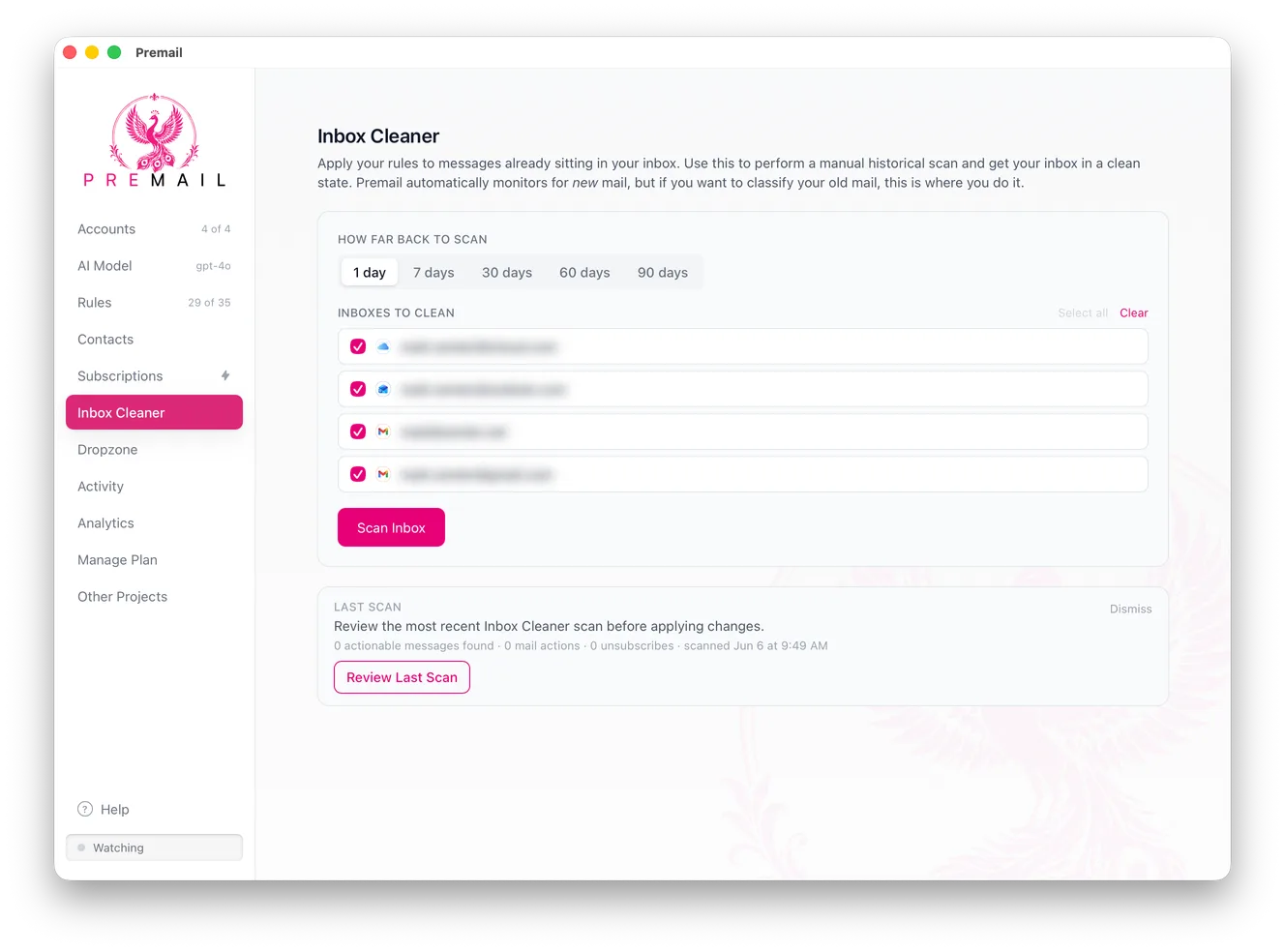
It fetches your existing inbox messages, runs them through the full classification pipeline, and applies matching rules. This is a one-time operation, not continuous monitoring. Once your inbox is cleaned up, the regular real-time system handles everything that arrives after.
What do you need before running Inbox Cleaner?
- An AI model must be configured. Inbox Cleaner classifies every message it fetches, so it cannot run without one.
- At least one rule must be enabled, otherwise there is nothing for a matched message to trigger.
- At least one account must be enabled and selected under
Inboxes to clean.
How far back can Inbox Cleaner scan?
The How far back to scan control offers 1, 7, 30, 60, or 90 days. Start at 1 or 7 on your first run. A short window finishes quickly, costs very little, and lets you check the results before you trust it with three months of mail.
What happens during an Inbox Cleaner run?
- 1Premail fetches messages from each selected inbox. Nothing is classified or changed yet.
- 2Each message goes through the full classification pipeline.
- 3Matching rules are applied, and any unsubscribes run after the rules have finished.
How do you review Inbox Cleaner results?
Results are grouped so you can check the decisions rather than take them on trust. Non-matching and kept messages are listed separately from the ones that were acted on, and you can search across sender, subject, category, body, or account. If something was handled that should not have been, use Add sender to allowlist directly from the result to make sure it never happens again - see Allowed Senders.
Scan results are saved, so you can close the tab and pick up where you left off instead of paying to classify the same messages twice.
Still have questions?
Contact Support (for Pro members)