
Setup & Learning Mode
Last updated
The first time you open Premail, a short setup wizard walks you through everything it needs and shows you what it would do to your real mail before anything is touched.
What does the setup wizard cover?
- 1Connect your accounts (Gmail, Outlook, or iCloud).
- 2Optionally sync your contacts, so people you know are never filtered.
- 3Choose an AI model: bring your own key, or run Ollama locally.
- 4Turn on the filters and rule packs you want.
- 5Premail scans a sample of your recent mail and shows what it would filter, so you can mark anything important to keep.
- 6Premail suggests anything else worth filtering.
The last two steps are skipped when the scan has nothing to show, and nothing in your mailbox is touched during setup.
What is the difference between Learning mode and Live mode?
Every account finishes setup in Learning mode. In Learning mode Premail classifies each new message and records what it would do, shown as "Would archive" and similar entries in the Activity log, but it never moves, archives, trashes, or unsubscribes anything. It is a safe way to watch how Premail would handle your mail before trusting it.
When you are confident, switch an account to Live mode and Premail starts applying your rules to new mail automatically.
How do you go Live?
You can switch an account from Learning to Live in a few places:
- The window shown right after setup, with a switch for each account or all at once.
- The Learning banner at the top of the app.
- The Accounts tab, one account at a time.
- The menu-bar tray.
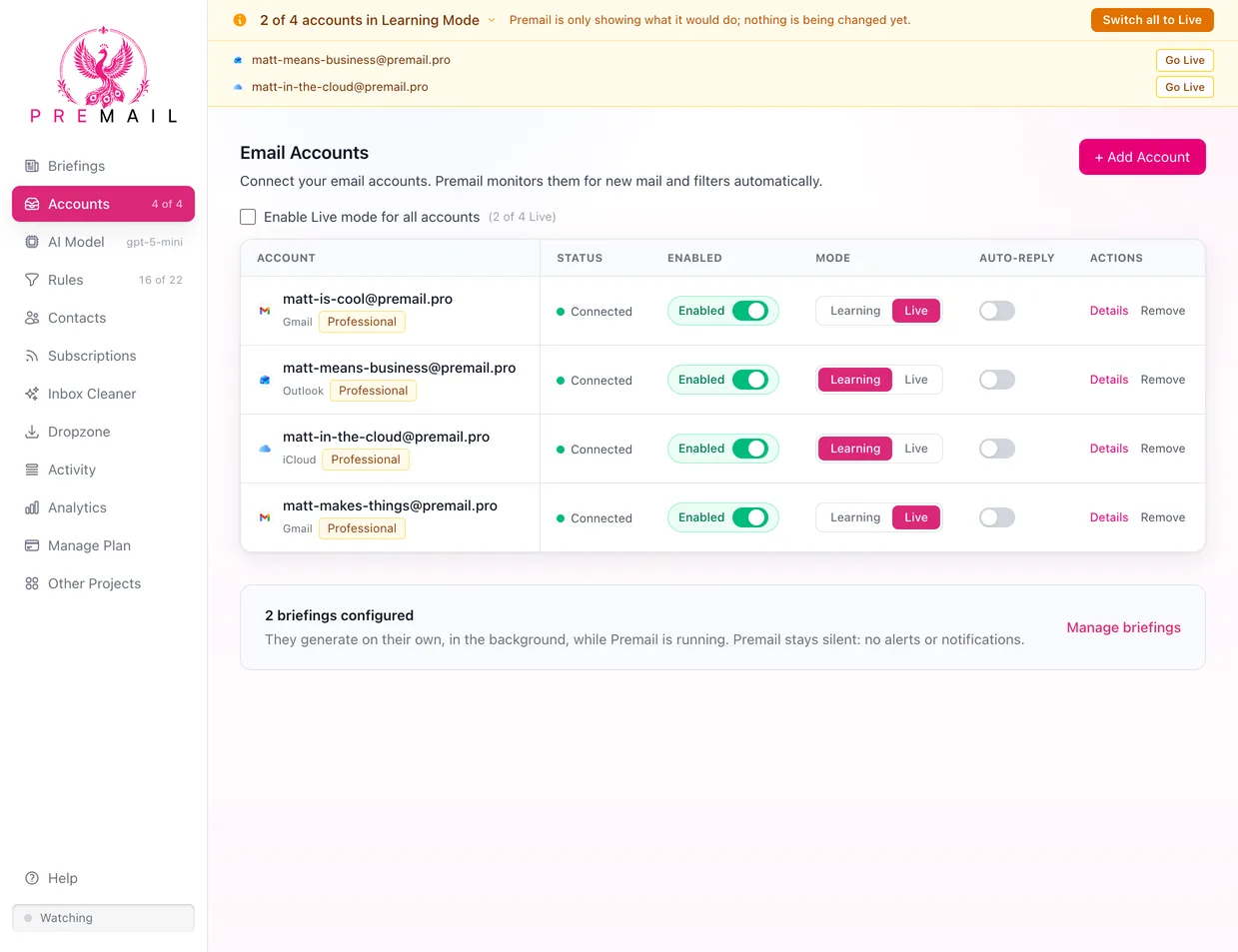
Premail confirms before an account goes Live. When it does, it runs the backlog it recorded while learning (what you previewed during setup) in the background, then keeps acting on new mail automatically. To clear older mail that was already in your inbox from before, use the Inbox Cleaner.
Still have questions?
Contact Support (for Pro members)