
Test Rules with Dropzone
Last updated
The Dropzone tab lets you drag and drop .eml files directly into Premail for classification. It's a sandbox for testing your rules before letting Premail loose on your live inbox.
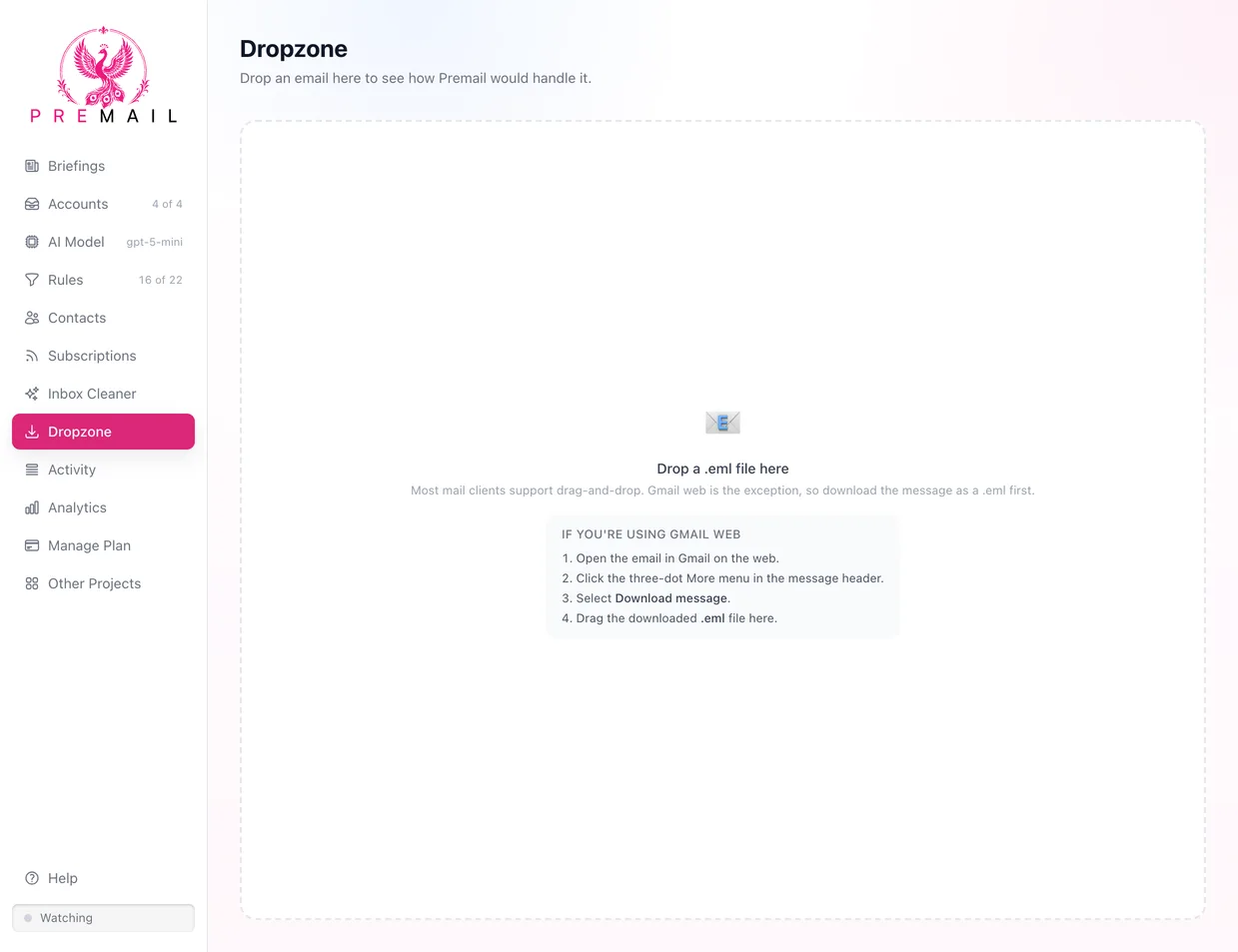
Good uses for the Dropzone:
- Testing whether a new custom rule would match a specific message
- Debugging why Premail did or didn't apply a rule to something
- Understanding how the AI classified a message you didn't expect
Drop an .eml file in and Premail runs it through the full pipeline and shows you what would happen. No action is taken automatically. If a rule matches and the email exists in a connected account, you can optionally click "Apply Rule" to act on it immediately. Export an email as .eml from Mail.app or other clients to use this feature.
What is Dropzone for?
Dropzone answers "what would Premail do with this?" without waiting for a matching message to arrive on its own. Drop a message in and you see the classification, the confidence, and which rule (if any) would have fired. It is the fastest way to check a new rule before you turn it loose on live mail.
Dropping a message here does not act on the real message in your mailbox. Nothing is archived, trashed, or moved.
How do you get a .eml file?
Dropzone accepts .eml files. Most desktop mail clients, including Apple Mail and Outlook, let you drag a message straight out of the message list onto the Dropzone window.
Gmail on the web is the exception - it does not support dragging a message out. Open the message, click the three-dot More menu in the message header, choose Download message, then drag the downloaded .eml file in.
How do you read a Dropzone result?
- AI Classification - the category the model assigned, with its confidence.
- Rule applied - which rule matched, or a note that none did.
- No confidence - the model could not classify the message, so no rule was applied. This is usually a sign the message is genuinely ambiguous rather than a bug.
If the wrong rule fired (or none did), use Select the rule that should have matched to record the correction, then adjust the rule's wording or its confidence threshold in Custom Rules.
Still have questions?
Contact Support (for Pro members)