
How to Turn Your Email Into an Action List With Premail Briefings
· By Matt Senter
Even a well-organized inbox leaves you with a job: open it, scan the messages, and figure out what needs doing. Rules can put everything in the right place, but you still have to assemble your own to-do list.
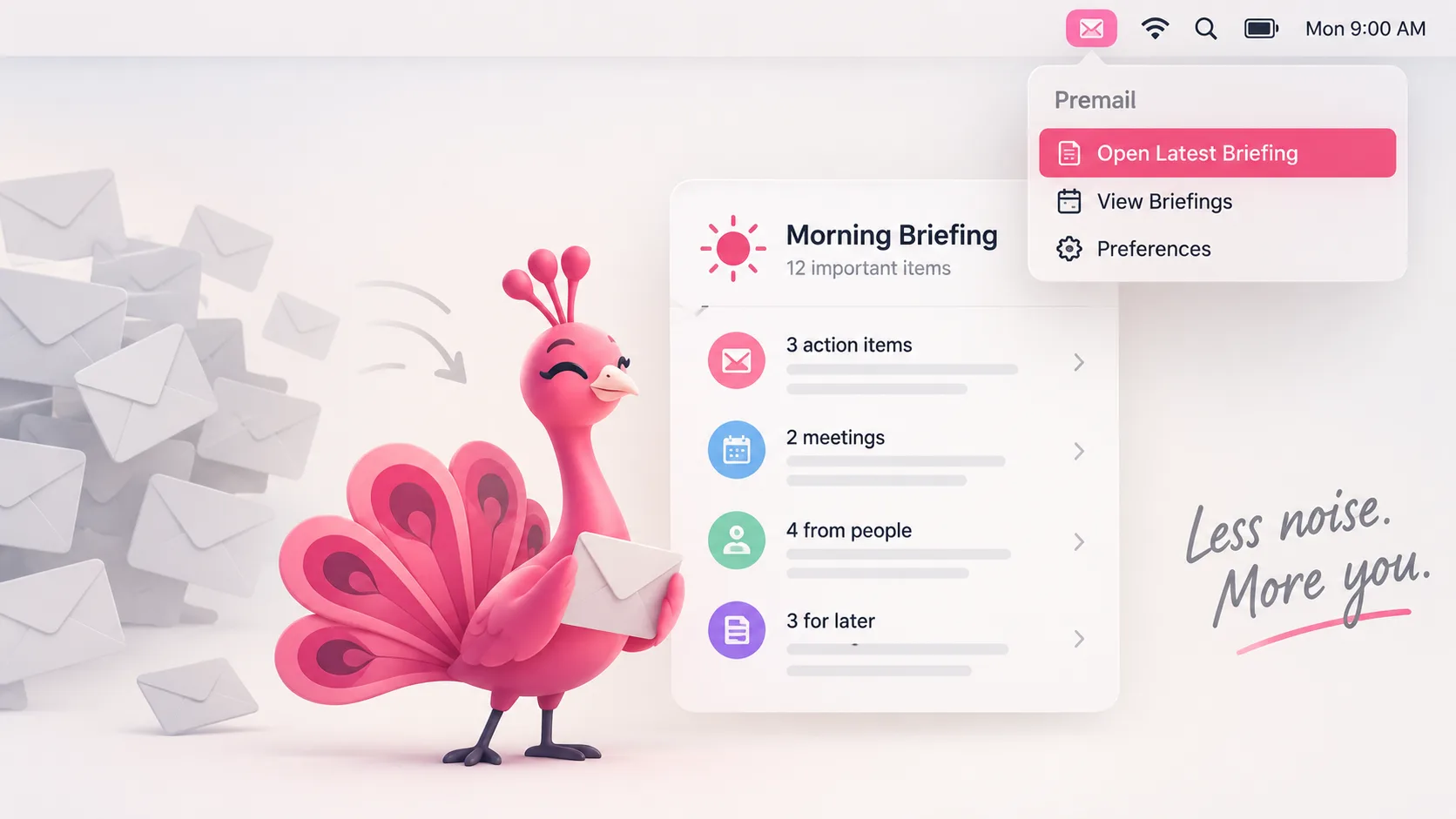
Premail Briefings give you a different starting point. Instead of beginning with a list of emails, you begin with a summary of what needs your attention, what is still outstanding, and what Premail handled quietly. Here is how to make that summary part of your day.
1. Pick your email checkpoints
Decide when reviewing email makes sense for you. Morning, midday, and evening are a useful starting point: plan the day, catch up around lunch, and review anything remaining before signing off. You don't need three checkpoints, though. Choose a cadence that fits your work and the response times people reasonably expect from you.
The purpose is to give email a place in your schedule, rather than opening it whenever you pause between tasks. Start with a routine you can actually follow, then adjust it as you learn what works.
2. Create your briefings
With Premail connected to your accounts and processing mail, open Briefings in the sidebar. You can also get there from the Set up a briefing button at the bottom of the Accounts tab.
The setup screen offers Morning, Midday, Evening, and Custom suggestions. These are starting points, not schedules that have already been enabled. Give a briefing the name and time you want, then click Create briefing. Use + Add to create additional checkpoints.
You can change the name or time through Edit schedule, or pause a briefing when you don't need it. Times follow your local clock, and Premail needs to be running to generate scheduled briefings. The summaries draw on mail Premail has already processed; they are not a live view of everything in your mailbox. You can also select a briefing and use Generate now for an on-demand summary.
3. Add the tray shortcut
To reach a briefing without first opening your inbox, open its Edit schedule controls and enable Show status in the tray. This is optional and off by default, so creating a briefing does not automatically add tray status updates.
When that briefing generates on schedule, its name and the number of items needing attention appear in Premail's tray menu. At your checkpoint, click the tray icon and select the briefing. You go straight to it instead of starting with a scan through your mail app.
4. Work from the action list
Read the summary, then focus on the things that need a response or a decision. For example, your next actions might be confirming a meeting time, sending someone a document, or answering a question. Treat those as things to do, rather than messages to repeatedly reopen while deciding where to start.
Use the original email when you need details, attachments, or the rest of a conversation. Premail is an email companion, not a replacement email client, so you still use your usual mail app to reply. Check the source message before acting on anything consequential; the briefing helps you prioritize, but the original provides the full context.
5. Make the briefing your starting point
At your next checkpoint, open the briefing before opening your inbox. Take care of the immediate actions, put longer work into your existing task system or calendar, and finish the review. You don't need to follow it with an inbox scan just out of habit.
Between checkpoints, keep working unless there's a specific reason to check sooner. This isn't a rule against opening email when you need it. It's a way to stop making "check email" a task you perform over and over without a clear purpose or endpoint. There is more on where that habit comes from in why you've been conditioned to check your email.
Filtering reduces what you have to look through. Briefings take the next step by giving you a place to start working. Set the checkpoints that fit your day, use the summary to decide what needs doing, and open individual emails when there's a reason to. If you haven't set one up yet, the feature announcement covers what goes into each section, or you can download Premail and create your first briefing today.