
Briefings
Last updated
Premail works silently by default: it classifies mail and applies your rules without bothering you. A briefing is the one deliberate exception, a short summary of what needs your attention and what you still owe someone, built on a schedule you set. Nothing runs until you create one.
How do I create a briefing?
- 1Open Briefings in Premail's left-hand menu.
- 2Pick a starting point: Morning, Midday, Evening, or Custom.
- 3Change the name and time to whatever you want. Times are your computer's local time.
- 4Press Create briefing. It is turned on right away.
You can have any number of briefings. Each appears as a tab across the top of the page, showing its time, its name, and how many items need attention. Select a briefing and press Generate now any time you don't want to wait for the schedule.
What does a briefing show?
A briefing opens with a short, plain-English paragraph written by your AI provider from the action summaries Premail already extracted, never from the messages themselves. Below it are four sections:
- Needs you: new items that want something from you, led by the action itself.
- Still waiting: items carried forward because you haven't marked them done, with how long each has been open.
- Worth knowing: worth mentioning, but nothing to do.
- Handled quietly: counts of what your rules already filtered or blocked, never a list of the messages.
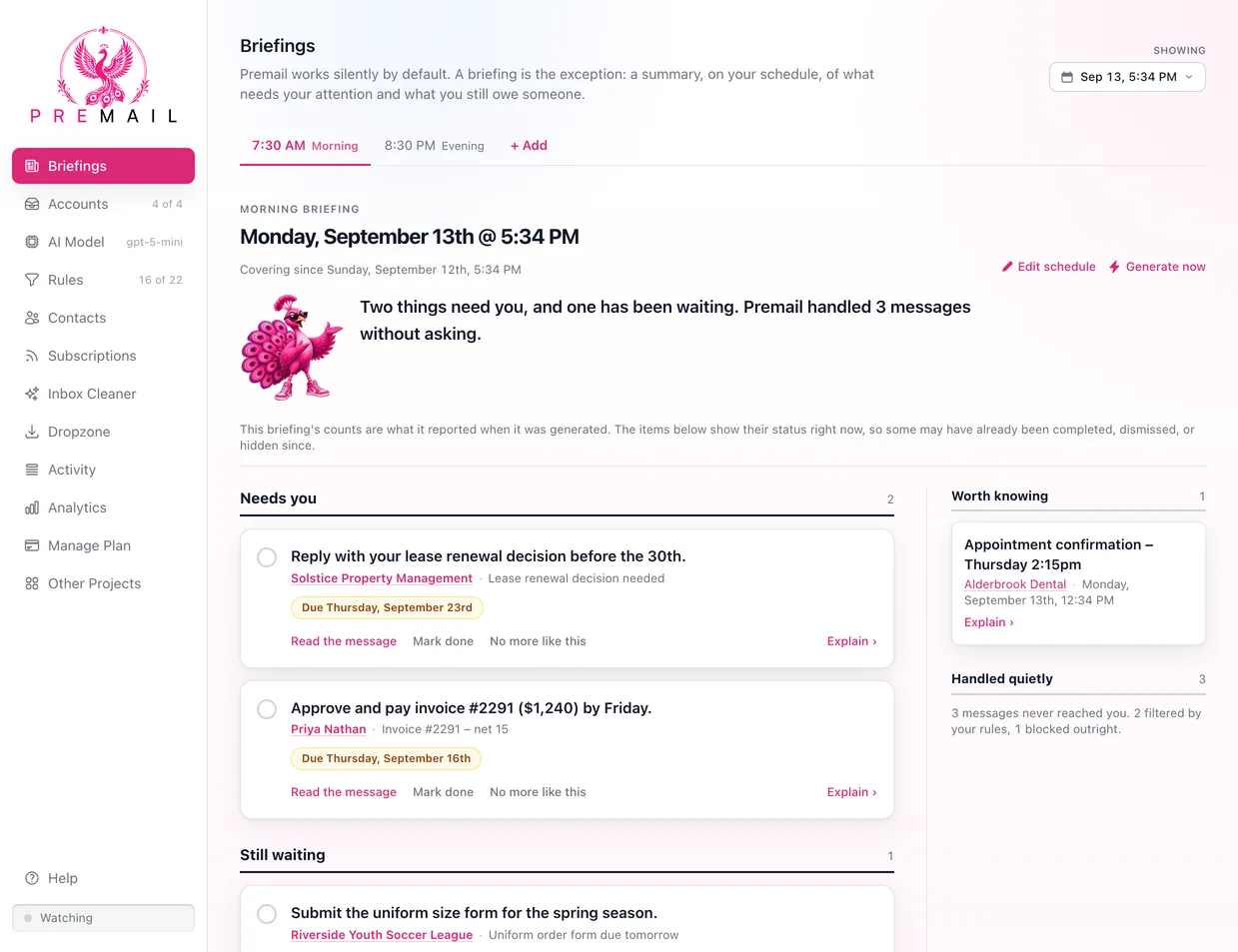
Under each item are plain links: Read the message, a link to open it in Gmail, Outlook, or Apple Mail when one can be built, then Mark done and No more like this. Explain sits in the bottom right corner and says why the item is there. Hold the pointer over any link for a short description.
Click the circle beside an item, or Mark done, to close it. A finished item shrinks to one struck-through line; click its filled circle again, or Undo, to reopen it.
When a message is a reply, Premail looks for new action items only in what the sender just wrote, not in the older conversation quoted beneath it, and works out deadlines from the date the message arrived. A quick "thanks" on an old thread won't bring back a question that was already handled.
How do I stop seeing a kind of item?
Mark done closes one item, and the next one like it comes back. No more like this tells future briefings to skip the whole kind.
- 1Press
No more like thison the item. A small panel opens inside it. - 2Premail writes a plain description of the kind, such as "Requests to review a Google Groups moderator spam report". Edit it if you like: what you leave in the box is exactly what gets saved.
- 3The panel says how many other open items would be hidden. Press Hide these to save, or Cancel to leave everything as it was.
- Matching is by what an item asks you to do, never by who sent it, so a group address that also sends you real mail is not affected.
- Hidden items leave your briefings only. The mail still arrives in your inbox as usual.
- Undo, right after saving, puts the items back and removes the rule.
- Without a working AI provider, Premail still hides the item you pressed it on, but it can't find similar items or match new mail.
- You can save up to 25 kinds. On-device models have a smaller working space, so they check new mail against your most recent kinds only.
Once anything is hidden, a Hidden link appears at the right end of the briefing tabs. It lists every saved kind with a search box, the example it came from, and how many open items it is hiding. Show again removes a kind and brings back the items it was hiding that you haven't dealt with. Edit changes the wording for mail that arrives from now on.
What does the clock on the tray icon mean?
Every briefing is listed in the tray menu, with how many items need attention once it has generated on its schedule. Turn on Show a clock on the tray icon when it's ready for a briefing to get a small clock on the tray icon when it generates on its own schedule and has something that needs you.
- It is off by default.
- The clock clears when you open the briefing or click the tray icon.
- A briefing with nothing outstanding, and a briefing you generate yourself with Generate now, never sets it.
- Pausing the briefing or unchecking the setting removes a clock that's already showing.
Can I look back at past briefings?
Yes. The calendar button at the top right of the Briefings page shows which days have a briefing. Pick a day to list that day's runs. Older runs age out over time, so an older month can show nothing. To print a briefing, use your system's print shortcut on the Briefings tab; the links and menus are left off the printed page.
What does Premail store for briefings?
Premail normally keeps no message text. While you have at least one briefing, it keeps a local copy of the plain text it read from each message, so Read the message can show what was actually written. It is stored only on your computer, readable only by your user account, and is erased when its briefing entry is, when you remove the account it came from, or when you delete your last briefing. Deleting your last briefing also erases your saved No more like this kinds. See privacy for what leaves your computer and when.
Still have questions?
Contact Support (for Pro members)