
How to Organize Outlook Email
· Written by Matt Senter, creator of Premail
Outlook gives you more built-in organizing tools than almost any other mail client, which is both a blessing and a trap. Used well, Focused Inbox, rules, and Quick Steps can keep your inbox nearly empty on their own. Used badly, they become one more system you stop maintaining. Here is how to set Outlook up so it stays organized. The shared five-folder system is in how to organize your email inbox.
Start with Focused Inbox
Outlook's Focused Inbox splits your mail into two tabs, Focused and Other, and tries to learn which senders matter to you. Turn it on (View → Show Focused Inbox), then train it: when something unimportant lands in Focused, right-click and choose "Move to Other → Always move." When something important lands in Other, do the reverse. A week of correcting it goes a long way.
Focused Inbox is a good first filter, but it is a black box. It will not file receipts into a Receipts folder or quarantine cold pitches; it only sorts into two buckets. For real structure you need folders and rules.
Build a small folder structure
Resist the urge to create twenty folders. A handful covers almost everything:
- Receipts for orders and invoices.
- Reading for newsletters.
- Notifications for automated alerts.
- Quarantine for cold outreach and recruiter spam.
Right-click your account name and choose New Folder for each. Everything resolved gets archived; the inbox is only for things that need you.
How to create folders in Outlook
The steps differ slightly depending on which Outlook you are in, and the menus have moved more than once, so here is each one:
- New Outlook for Windows and Outlook on the web: right-click your account name (or any existing folder) in the left sidebar and choose Create new subfolder. Type the name and press Enter.
- Classic Outlook for Windows: Folder tab → New Folder, or press Ctrl+Shift+E. Pick where it sits in the tree before you confirm.
- Outlook for Mac: right-click the account or folder in the sidebar and choose New Folder.
A folder created under your account name sits at the top level. A folder created by right-clicking an existing folder becomes a subfolder of it. This is the one thing people get wrong and then cannot find later: if a new folder does not appear where you expected, you almost certainly created it inside whatever was selected at the time.
To rename or move one, right-click it and choose Rename or drag it to a new parent. To delete, right-click and Delete folder - the messages inside go to Deleted Items with it, so move anything you want to keep first.
How to organize emails into folders
Once the folders exist, there are four ways to get mail into them, and they suit different situations:
- Drag and drop - fine for one or two messages. Select several with Ctrl-click (or Shift-click for a range) and drag them together.
- Right-click → Move - more reliable than dragging when the target folder is collapsed or far down a long list.
- Move to a folder by keyboard - Ctrl+Shift+V in classic Outlook opens the Move dialog, where you can type the first letters of the folder name. This is by far the fastest way to file a backlog by hand.
- Rules - the only option that scales, because it files mail without you being there. Covered in the next section.
One decision worth making early: folders, categories, or archive? Use a folder when a message belongs to exactly one bucket and you will go looking for it there. Use a category (a colour tag) when the label cuts across folders - "Follow up", "Waiting on" - because a message can carry several categories but live in only one folder. Use Archive for everything that is simply done: Outlook's search is good enough that filing resolved mail into a taxonomy is usually wasted effort.
Which is why the folder count matters. A structure you can hold in your head gets used; twenty folders becomes a filing decision on every message, and filing decisions are what people quietly abandon after a fortnight.
Keep the folder list itself readable
Two small things make a real difference once you have more than a handful:
- Favourites: drag the three or four folders you touch daily into the Favourites section at the top of the sidebar. They stay one click away no matter how deep the real tree gets.
- Ordering: Outlook sorts folders alphabetically. If you want a specific order, prefix the names with a numeral or a symbol -
1 Receipts,2 Reading- rather than fighting the sort.
Collapse the folders you rarely open. A sidebar you can read at a glance is the difference between a system you use and one you scroll past.
Use rules to sort on arrival
Outlook rules move messages automatically as they arrive. Right-click a message, choose Rules → Create Rule, and set conditions (from a sender, with words in the subject) and an action (move to a folder). Set up rules for your predictable senders first: shipping notifications, billing, internal tools.
Two more tools worth knowing:
- Sweep (in the toolbar) bulk-handles a single sender: delete everything from them, keep only the latest, or auto-delete after a few days. Perfect for one noisy newsletter.
- Quick Steps turn a multi-step action ("mark read, move to Reading") into one click. Great for the filing you still do by hand.
- Categories (color tags) let you label messages without moving them, useful for cross-cutting things like "Follow up" or "Waiting on."
The limit of Outlook rules
Outlook rules are powerful but literal. They match exact senders and subject words, so the moment a new pitch arrives from a name you have never seen, or a sender changes its "from" address, the rule misses and the message lands in your inbox. You end up maintaining a long, brittle list of rules, and most people eventually stop and let the inbox fill back up.
The judgement that rules cannot do, "is this a cold sales pitch?", "is this a genuine reply or an automated acknowledgement?", is exactly what a person does effortlessly and a keyword rule cannot.
Keep Outlook organized automatically
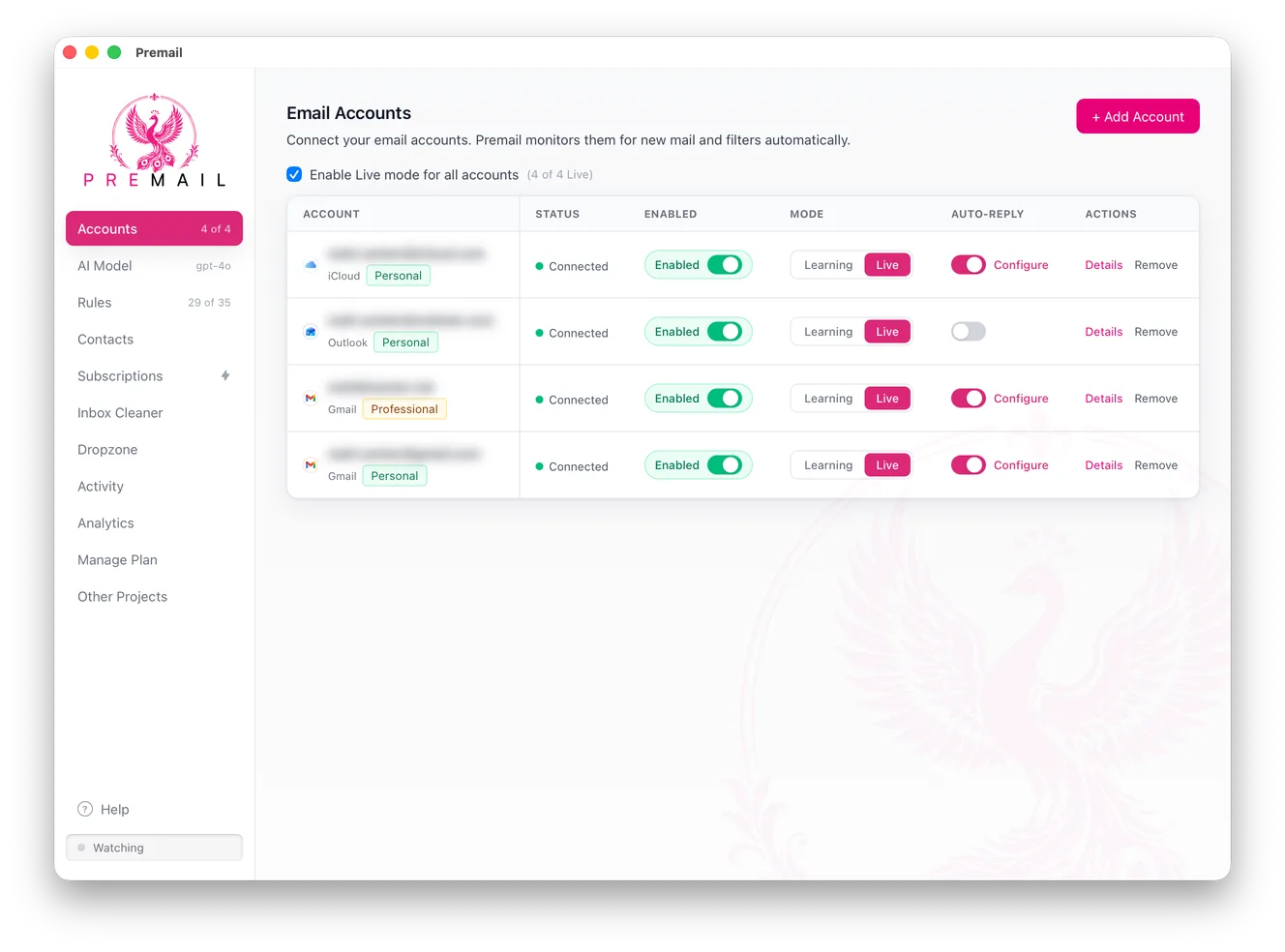
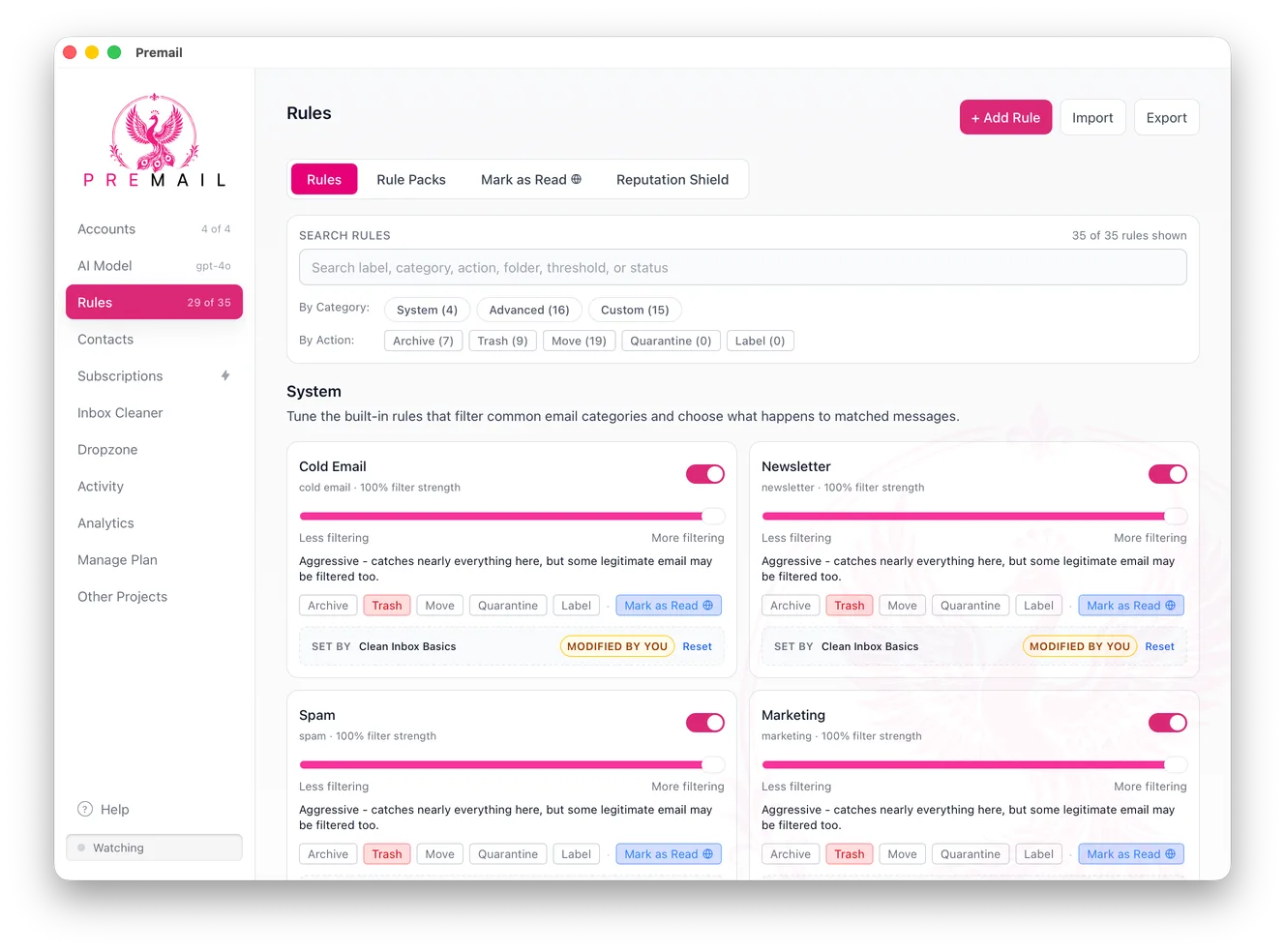
If you want the structure to last, hand the ongoing sorting to something that actually reads each message. Premail runs as a quiet app on your own computer, connects to your Outlook account, and applies plain-English rules to every new message before you see it, in your existing Outlook folders. Instead of "if subject contains X," you write "quarantine cold sales pitches," and a real AI model judges each message on its actual contents. It runs locally with the model you choose (including a fully offline option), so your mail is never sent to a third-party cloud. Free for personal inboxes.
The short version
- Turn on Focused Inbox and train it for a week.
- Create a few folders: Receipts, Reading, Notifications, Quarantine. Right-click the account name, not a folder, unless you want a subfolder.
- File by hand with Ctrl+Shift+V, not by dragging. Put your daily folders in Favourites.
- Use categories for labels that cut across folders, and Archive for anything simply finished.
- Add rules for predictable senders; use Sweep and Quick Steps for the rest.
- For mail that rules cannot judge, let AI do the sorting so the system actually holds.