
How to Clean Up Your Gmail Inbox Quickly
· Written by Matt Senter, creator of Premail
A Gmail inbox with 40,000 unread messages feels impossible to fix. It is not. Gmail has a few search tricks that let you clear out the bulk of it in well under an hour, and once it is clean, a little automation keeps it that way. Here is the fast path. The five-folder system this cleanup feeds is in how to organize your email inbox.
Step 1: Delete the biggest offenders by sender
Most inbox clutter comes from a small number of senders that mail you constantly: one retailer, one social network, one notification service. Find them and clear them in bulk.
In the Gmail search bar, search for a single noisy sender:
from:notifications@example.comshows every message from that sender.- Click the checkbox at the top left to select the visible page, then click "Select all conversations that match this search."
- Hit the trash icon. Thousands gone in one click.
Repeat for your five or six worst senders. This alone usually clears the majority of the pile.
Step 2: Use search operators to find junk fast
Gmail's search operators are the real cleanup tool. A few that do heavy lifting:
older_than:1y: everything more than a year old. Almost always safe to archive or delete.category:promotions: Gmail's own bucket of marketing mail. Select all, delete.category:social: notifications from social platforms.has:attachment larger:10M: the big attachments eating your storage.is:unread older_than:6m: old unread mail you were never going to read. If you have not read it in six months, you will not.
Run each search, select all matches, and clear them. Combine operators to get specific: from:linkedin.com older_than:3m targets exactly one kind of clutter.
The select-all trick most people miss
This is the single detail that turns a two-hour cleanup into a ten-minute one, and Gmail hides it badly.
When you tick the checkbox at the top left, Gmail selects the 50 conversations on the current page - not the 4,000 your search actually matched. A thin banner then appears above the list reading "Select all 4,000 conversations that match this search". You have to click that link. Miss it and you will delete 50 messages, page by page, and conclude that cleaning Gmail is hopeless.
So the loop for each search is: run the query, tick the header checkbox, click the "Select all N conversations" link, then hit Delete or Archive and confirm the bulk-action dialog. Repeat per query rather than trying to build one giant search - narrow queries are easier to sanity-check before you pull the trigger.
If you are doing this to free up storage
A lot of Gmail cleanups start with a "storage is full" warning, and deleting mail alone will not clear it. Three things to know:
- Deleted mail still counts for 30 days. Empty Trash (and Spam) afterwards or nothing changes.
- The quota is shared across Gmail, Google Drive, and Google Photos. If mail is not the bulk of it, deleting email is the wrong lever - check the storage breakdown first.
- Size beats count. A thousand text newsletters are smaller than a handful of design files. Sort by
larger:10Mandhas:attachment larger:25Mbefore deleting anything by volume.
Archiving does not free storage - archived mail is still stored, just out of the inbox. That is a feature if your goal is a clean inbox and a problem if your goal is free space. Be clear which one you are solving.
Doing it on your phone
The Gmail mobile app has no select-all-matching-search, no bulk unsubscribe, and no filter editor. You can search and delete a screenful at a time, and that is it. If you have thousands of messages to clear, do the cleanup once at a desktop browser and use the phone only for the daily upkeep afterwards. Trying to bankrupt an inbox by thumb is the most common reason people give up halfway.
Step 3: Mass unsubscribe instead of deleting forever
Deleting a newsletter does nothing about next week's edition. For mail you no longer want, unsubscribe so it stops arriving at all. Gmail shows an "Unsubscribe" link next to the sender name on many marketing emails; use it. The most efficient move is to clear and unsubscribe in one pass: as you clean out each noisy sender, decide whether you ever want to hear from them again, and if not, unsubscribe before you move on.
Step 4: Archive the rest (email bankruptcy)
Whatever is left that you are not sure about, do not agonize over it. Select everything older than two weeks and archive it. In Gmail, archived mail leaves the inbox but stays fully searchable forever, so you lose nothing. This "email bankruptcy" move gets you to a clean inbox in one click without the fear of deleting something important.
Step 5: Set up filters so it stays clean
A clean Gmail inbox that refills next week was not really cleaned. Set up a few filters so new mail sorts itself:
- Search for a recurring sender, click the search options arrow, and choose "Create filter."
- Have receipts skip the inbox and apply a Receipts label. Have notifications skip the inbox and apply a Notifications label.
- Use Gmail's category tabs (Promotions, Social, Updates) so marketing mail never hits your main tab in the first place.
Filters help, but they are literal. They match exact senders and subject lines, so a new pitch from a name Gmail has never seen, or a sender that quietly changes its "from" address, slips straight through. You end up babysitting a growing list of filters, and most people eventually stop.
Keeping it clean without babysitting filters
The reason inboxes get messy again is that the ongoing sorting is tedious, and rigid filters cannot keep up with mail they have never seen before. This is the part worth handing to software that actually reads each message and decides where it goes, the way you would.
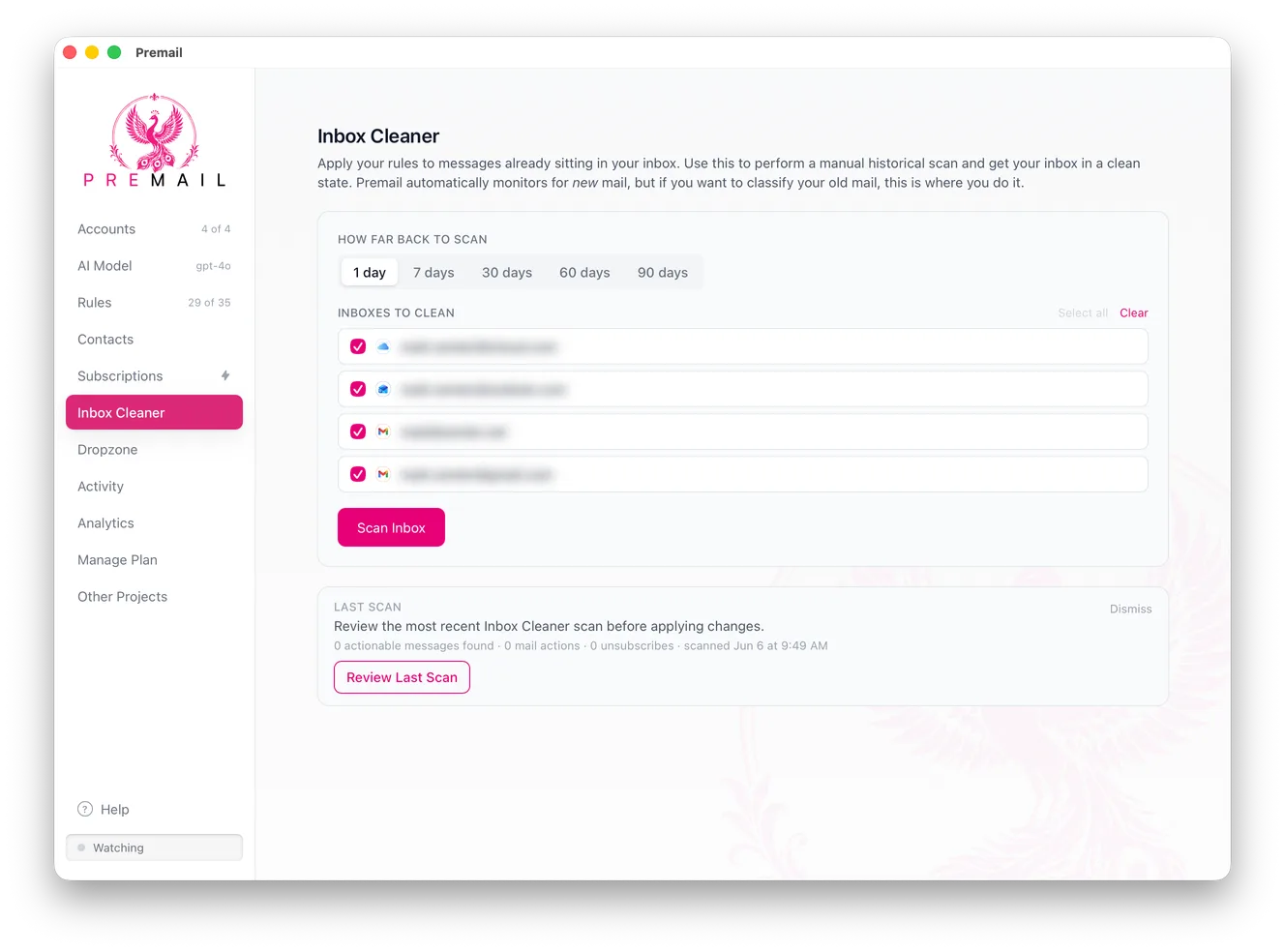
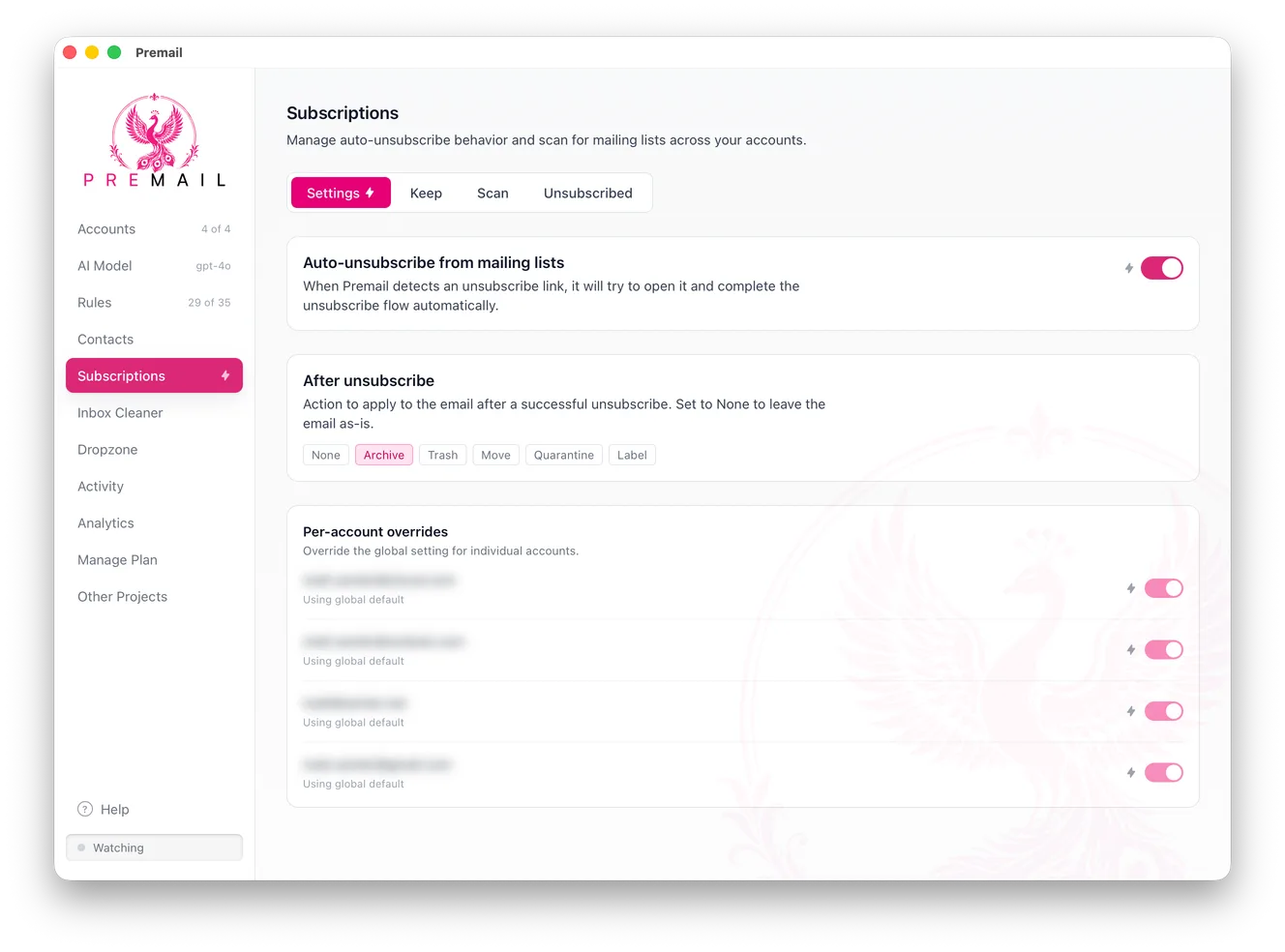
That is what Premail does. It runs on your own computer, watches your Gmail (and Outlook or iCloud) inbox, and applies plain-English rules to every new message before you see it, using an AI model you choose, including a fully local option with Ollama so nothing leaves your machine. Instead of "if from this exact address," you write "quarantine cold sales pitches" or "file order confirmations under Receipts," and it judges each message on its actual contents. No cloud middleman, no per-inbox subscription, free for personal inboxes. It also includes a bulk unsubscribe and an inbox cleaner for chewing through the backlog you just archived.
The 20-minute checklist
- Delete your five noisiest senders with
from:searches. - Clear out
category:promotions,category:social, andolder_than:1y. - Unsubscribe from anything you cleared and never want again.
- Archive everything older than two weeks.
- Add filters (or hand the sorting to software) so it stays clean.
Twenty minutes of focused cleanup, and your Gmail inbox goes from unmanageable to empty. The trick after that is making sure you never have to do it again.