
Watch OTPs From Every Account in One Place: A Security Smart Mailbox in Apple Mail
· By Matt Senter
One-time passcodes are the one kind of email you actually need right now. You're mid-login, the code is good for sixty seconds, and it's buried somewhere between a shipping notification and a newsletter you forgot you subscribed to. The Security rule pack fixes the burying problem: it recognizes OTPs, login alerts, and verification codes, and files them into a dedicated Security folder so they're never lost in the noise.
That works beautifully on a single account. But if you run several accounts in Apple Mail, like I do, you hit a wrinkle worth solving.
The multi-account wrinkle
Premail applies the same rules to every account you connect. So the Security rule pack creates a Security folder in each account. With five accounts, that's five separate Security folders scattered down the Apple Mail sidebar, one nested under each mailbox. When a code arrives, you don't know which account it landed in, so you end up checking all five. That defeats the purpose.
The fix is a feature Apple Mail has had for years and most people never touch: a Smart Mailbox. A Smart Mailbox isn't a real folder that holds mail. It's a saved search that gathers messages matching your conditions from anywhere across your accounts and shows them in one view. Nothing moves. The codes stay filed in their per-account Security folders, but you get a single window into all of them.
Building the Security Smart Mailbox
In Apple Mail, choose Mailbox → New Smart Mailbox. Name it Security. Set it to match any of the following conditions, then add one condition per account: Message is in mailbox → the Security folder for that account. Repeat until every account's Security folder is listed.
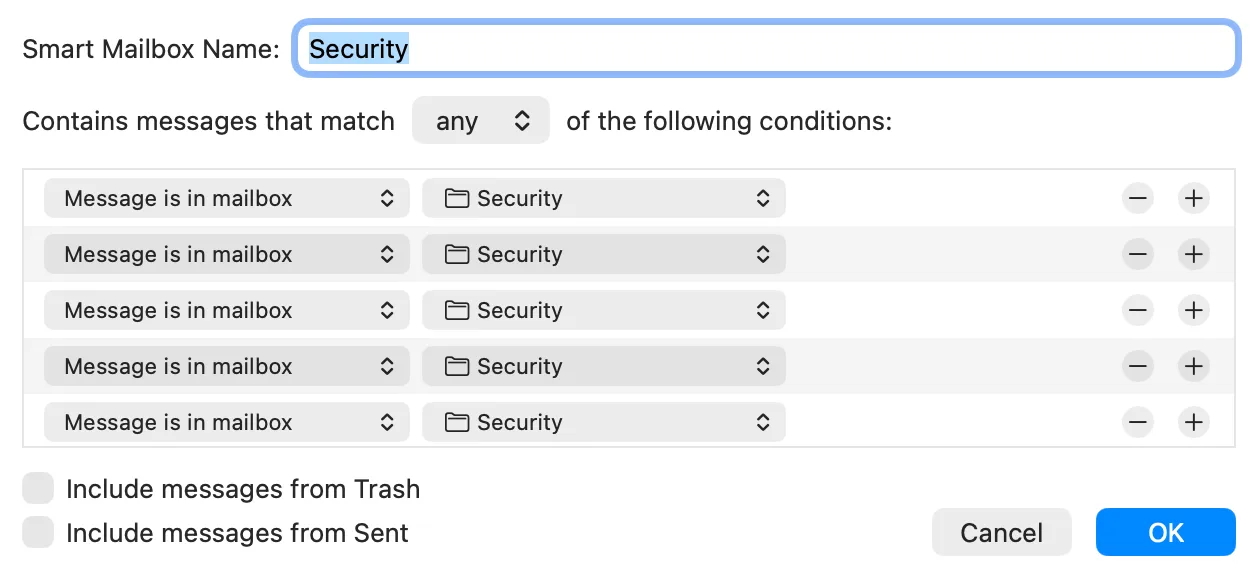
Two details matter. First, use any, not all. A given message lives in exactly one account's Security folder, so requiring it to be in all of them at once would match nothing. Second, leave Include messages from Trash and Include messages from Sent unchecked. You only want live codes, not ones you've already deleted.
One mailbox to watch
Click OK and a single Security Smart Mailbox appears at the top of the sidebar, under "Smart Mailboxes," above your individual accounts.

Now there's exactly one spot to look. A code lands in any of your five accounts, Premail files it into that account's Security folder, and it shows up here instantly. You stop hunting across accounts and start glancing at a single mailbox.
Why this beats a single inbox rule
You might wonder why not just route every account's codes into one shared folder. The Smart Mailbox approach keeps each account's mail where it belongs, which matters for account-specific search, retention, and the rare case where you need to know which identity a code was issued to. The Security rule pack does the filing, per account, exactly as designed. The Smart Mailbox is purely a viewing layer on top. Add or remove an account later and you just add or remove one condition.
The same trick works for any rule pack that files into a per-account folder. If you sort receipts into a Commerce folder or alerts into a Finance folder across multiple accounts, build a matching Smart Mailbox and watch them all in one view.