
Apple Intelligence Setup
Last updated
Apple Intelligence lets Premail classify email using the on-device model built into macOS, instead of a cloud provider or Ollama. There is no API key to create, no separate AI account to sign up for, and no model to choose or download yourself - macOS manages the model and Premail simply asks for a result.
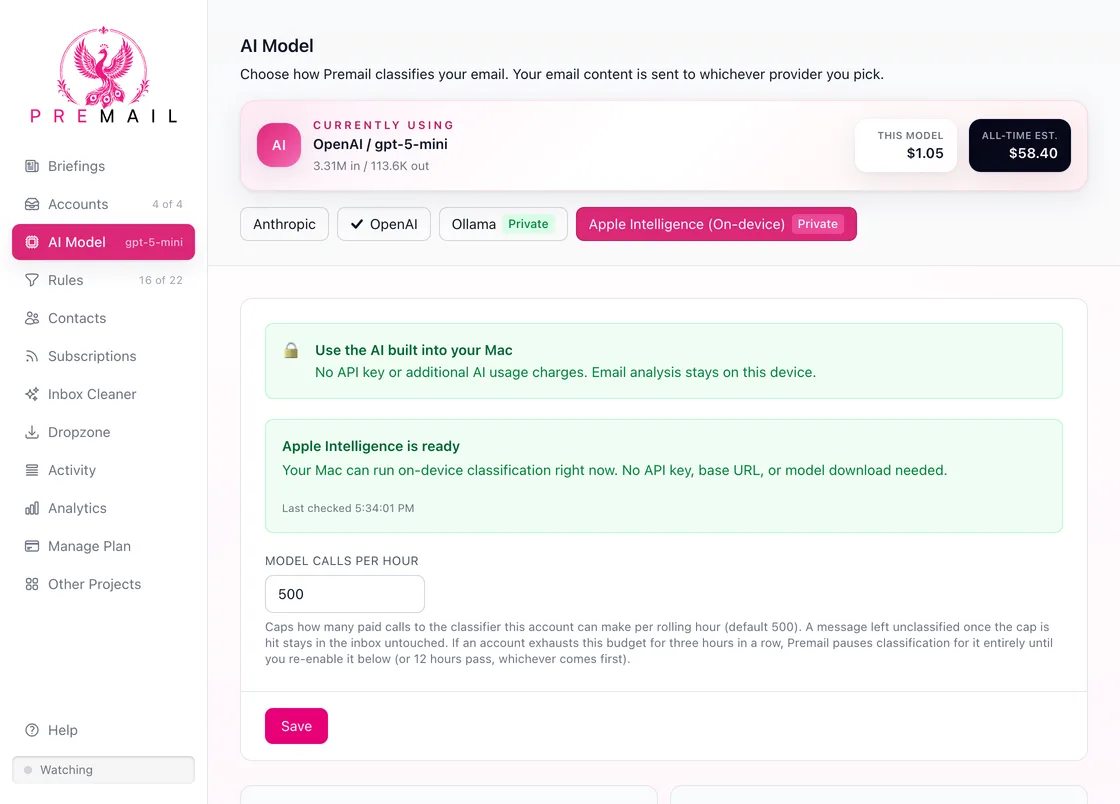
What do you need?
- A Mac that supports Apple Intelligence, running macOS 26 or later.
- Apple Intelligence turned on for your Apple Account, with a supported language and region setting.
- The on-device model assets downloaded and ready (macOS handles this automatically once Apple Intelligence is on).
How do you turn it on?
- 1Open System Settings and turn Apple Intelligence on. Where it lives depends on your macOS version:
- macOS 26: choose Apple Intelligence & Siri in the sidebar and turn on the Apple Intelligence switch.
- macOS 27 and later: choose Siri in the sidebar. There is no separate Apple Intelligence switch on these versions: Apple Intelligence is on whenever Siri is on, so make sure Siri is turned on (the pane says "Powered by Apple Intelligence" at the top).
- 2Let your Mac finish obtaining the on-device model assets in the background. This depends on your network connection and Apple's own rollout; Premail cannot show a download percentage or a reliable time estimate because macOS does not expose one.
- 3Return to Premail's AI Model tab (or the onboarding wizard), select Apple Intelligence, and click Check again. Premail also rechecks automatically when the app regains focus, so coming back from System Settings updates the panel on its own.
- 4Once Premail reports "Apple Intelligence is ready," confirm classification works by dropping a sample .eml file onto the Dropzone tab and checking the result.
How does Premail know if it's ready?
Premail never assumes availability or caches a saved flag. Every time the readiness panel checks (on open, on "Check again," and when the app window regains focus), it asks macOS directly and shows you exactly what it hears back:
- Ready. Your Mac can run on-device classification right now.
- Turned off. Apple Intelligence needs to be enabled in System Settings.
- Model not ready. macOS may still be preparing the on-device model in the background.
- Unsupported. This Mac or OS version can't run Apple Intelligence.
- Unavailable, no specific reason given. macOS reported it can't run a request without saying why. This can happen when your Mac's language and Siri's language differ, or with certain language or region settings; the Siri pane in System Settings explains which.
- Missing helper. Apple Intelligence itself may be fine, but this copy of Premail can't reach it. Install the latest release from the download page. (If you build Premail from source, rebuild with
PREMAIL_BUILD_APPLE_BRIDGE=1.)
What doesn't Apple Intelligence change?
- Your mail still travels over the network. Selecting Apple Intelligence only changes where AI analysis happens. Syncing mail, applying actions (archive, trash, move, quarantine), and unsubscribing still talk to your email provider (Gmail, Outlook, or iCloud) over the internet exactly as before. "Local AI" does not mean the app works offline.
- Your Premail plan and pricing are unaffected. There is no per-request AI charge and no key to buy for this option, but it does not make the rest of Premail free - your existing subscription or license terms are unchanged.
- Briefings and notification settings stay as you left them. Choosing Apple Intelligence does not turn on scheduled briefings or alerts by itself; those remain a separate, opt-in setting.
- Nothing falls back to the cloud automatically. If the on-device model is unavailable, Premail tells you so rather than silently sending your mail to a cloud provider. Switching to a different AI provider is always an explicit choice you make in settings.
What happens when Apple Intelligence refuses a message?
From v1.2.2, Premail retries Apple Intelligence refusals with bounded backoff. Eligible live classification failures can receive two later attempts, after about 30 seconds and two minutes. If the model still cannot classify the message, Premail reports the failure rather than treating it as a successful classification. It never switches to a cloud provider automatically.
What if something isn't working?
- "This Mac can't run Apple Intelligence." Your hardware or macOS version doesn't support it. Update macOS if you're behind, or choose Anthropic, OpenAI, or Ollama instead.
- "Apple Intelligence is turned off." Open System Settings and turn it on: the pane is Apple Intelligence & Siri on macOS 26, and just Siri on macOS 27 and later, where turning Siri on turns Apple Intelligence on with it. Then use Check again.
- "The on-device model isn't ready yet." macOS may still be downloading model assets in the background. There's no reliable way to know how long this takes; check again later, ideally on Wi-Fi.
- Unsupported language or region. Apple Intelligence is limited to certain languages and regions. If your Mac's language/region isn't supported, macOS reports unavailable and Premail surfaces that rather than guessing at a fix.
- A message is refused, comes back incomplete, or a long email isn't fully analyzed. The on-device model can decline to process certain content or be unable to safely handle an oversized message. When that happens, the email itself stays exactly where it is and remains fully accessible - Premail simply doesn't apply a model-dependent action to it.
- Slow responses, timeouts, or "busy." On-device generation shares your Mac's own resources and Premail limits how many requests run at once. Under load you may see a retryable timeout or busy response; Premail retries in the ordinary course of classification.
- Settings restored from a different Mac (iCloud or Migration Assistant). Apple Intelligence readiness is tied to this specific Mac's hardware and its own model download, not to anything Premail stores. If you restored Premail's settings from another machine, re-check readiness on this Mac rather than assuming it carried over - a Mac that didn't support Apple Intelligence, or hadn't finished its model download, will report that honestly regardless of what worked on the old machine.
What about privacy, cost, and quality?
- Where analysis happens. With Apple Intelligence selected, the email text Premail sends for classification is processed on your Mac. It is not sent to a cloud AI service, to Apple's Private Cloud Compute, or to any Premail server.
- Cost. No per-request AI charge and no API key to pay for.
- Quality. We don't claim Apple Intelligence matches cloud-model accuracy, a specific context size, or that it's the default recommended option for everyone - the public Foundation Models API this feature is built on does not expose an introspectable context window size, so Premail does not display or promise one. Try it against your own mail and compare with Dropzone if you're unsure it's the right fit.
Still have questions?
Contact Support (for Pro members)